Webvolt User Guide
Webvolt is a zero-knowledge password manager. Everything is encrypted on your own device before it is ever stored, so the server holding your vault can never read it. This guide shows you how to install it, unlock it, and use every feature.
Installation
Webvolt has two parts: a backend you run yourself, and the browser extension. You set the backend up once, then load the extension into your browser.
1. Start the backend
From the project's backend folder, create your environment file and set a strong signing secret. The server refuses to start with a placeholder value.
cd backend
cp .env.example .env

# generate a strong secret and paste it into .env as SECRET_KEY:
python -c "import secrets; print(secrets.token_urlsafe(64))"
Then bring up the database and API together with Docker:
docker compose up --buildThe API is now served at http://localhost:8000.
2. Build the extension
cd extension
npm install
npm run build
3. Load it into your browser
- Open
chrome://extensions(oredge://extensions). - Turn on Developer mode (top-right toggle).
- Click Load unpacked and select the
extension/distfolder. - Copy the extension's ID from its card.
- Put that ID in
backend/.envasCORS_ORIGINS=chrome-extension://<your-id>, then restart the backend.
extension/dist (the built output), not extension itself — the top folder has no manifest.json.Create your vault
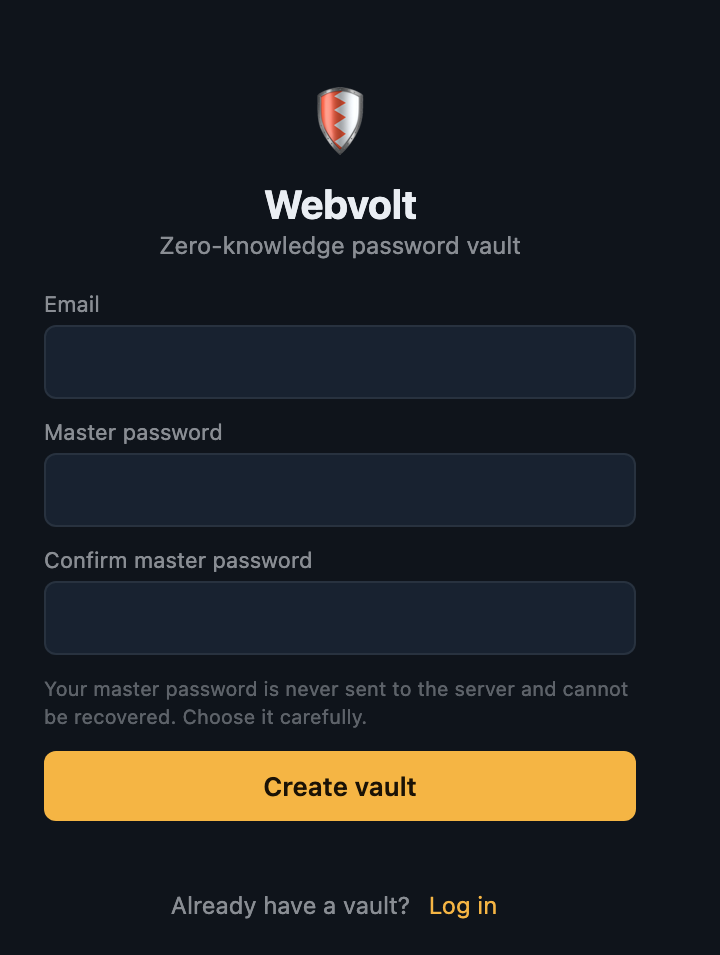
Click the Webvolt shield to open the popup, then choose Create a vault.
- Enter your email — it identifies your account and is never used to contact you.
- Choose a master password. The strength meter guides you toward a strong one.
- Confirm it and click Create vault, then log in.
Unlocking and locking
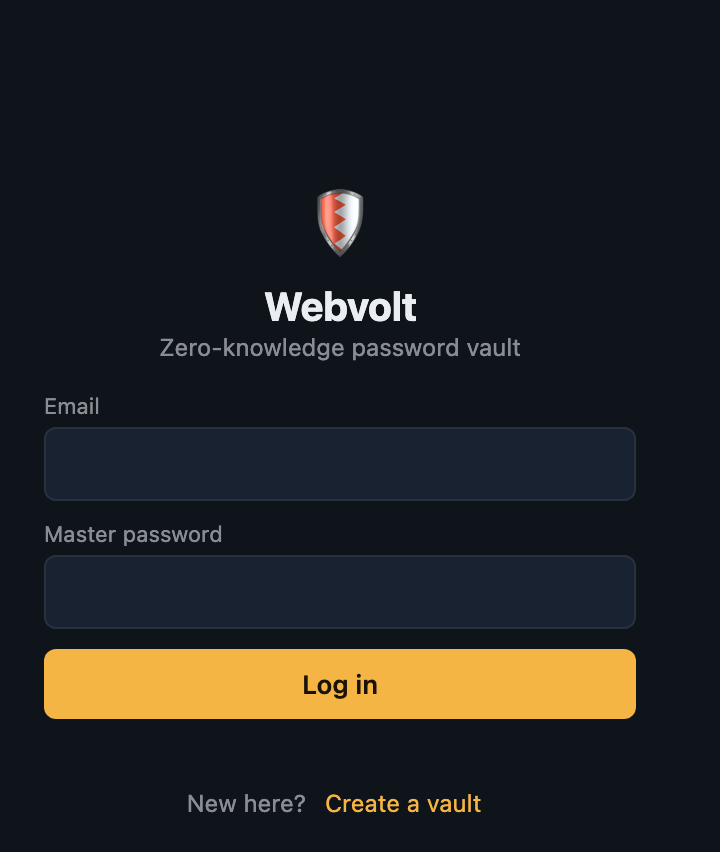
After the first login, Webvolt remembers you are signed in but keeps the encryption key only in memory. When the key is cleared, the vault is locked and you simply re-enter your master password to unlock — no full login needed.
- Lock now: click the 🔒 icon in the top-right of the popup.
- Auto-lock: the vault locks itself after a period of inactivity (set it in Settings). It also locks whenever you close the browser.
- Sign out: Settings → Sign out fully ends the session and clears everything on this device.
Adding items
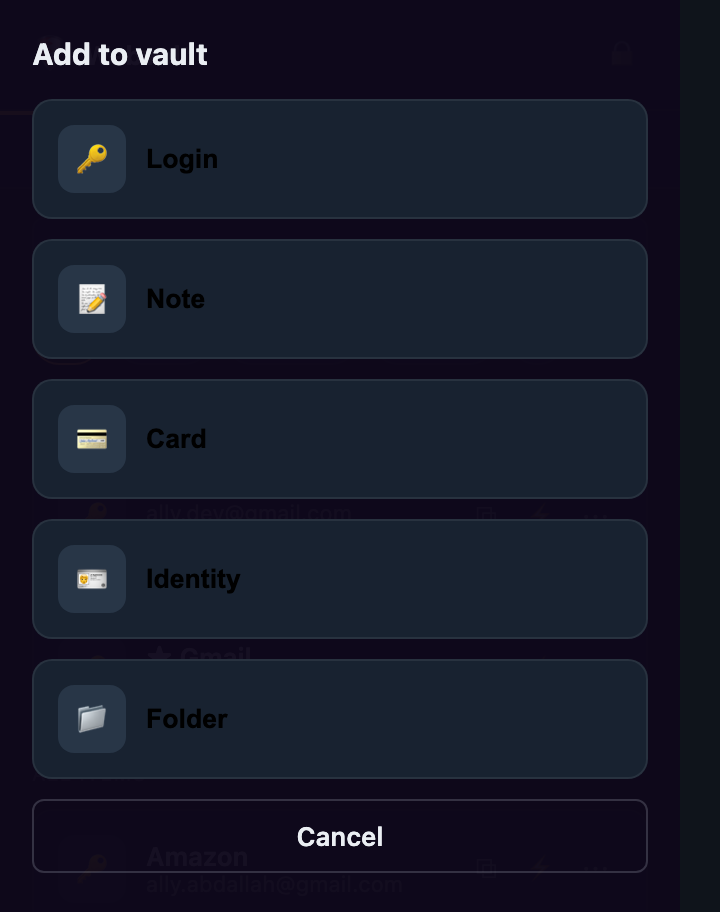
Click + Add item at the bottom of the vault and pick a type. Webvolt stores four kinds of secret plus folders.
Login
Website, username, password, an optional 2FA secret, and notes. This is the type that autofills.
Secure note
Free-text secrets — recovery codes, licence keys, anything you want encrypted.
Card
Cardholder, number, brand, expiry and CVV, kept encrypted like everything else.
Identity
Name, email, phone and address for filling in personal details.
For a login, fill in the Website field (for example github.com) — this is what autofill matches against, and it is what pulls in the site's icon. Use the ↻ button next to the password to generate a strong one on the spot. Every item can be placed in a folder and marked as a favourite (★), and favourites are pulled to the top of the list.
Search & folders
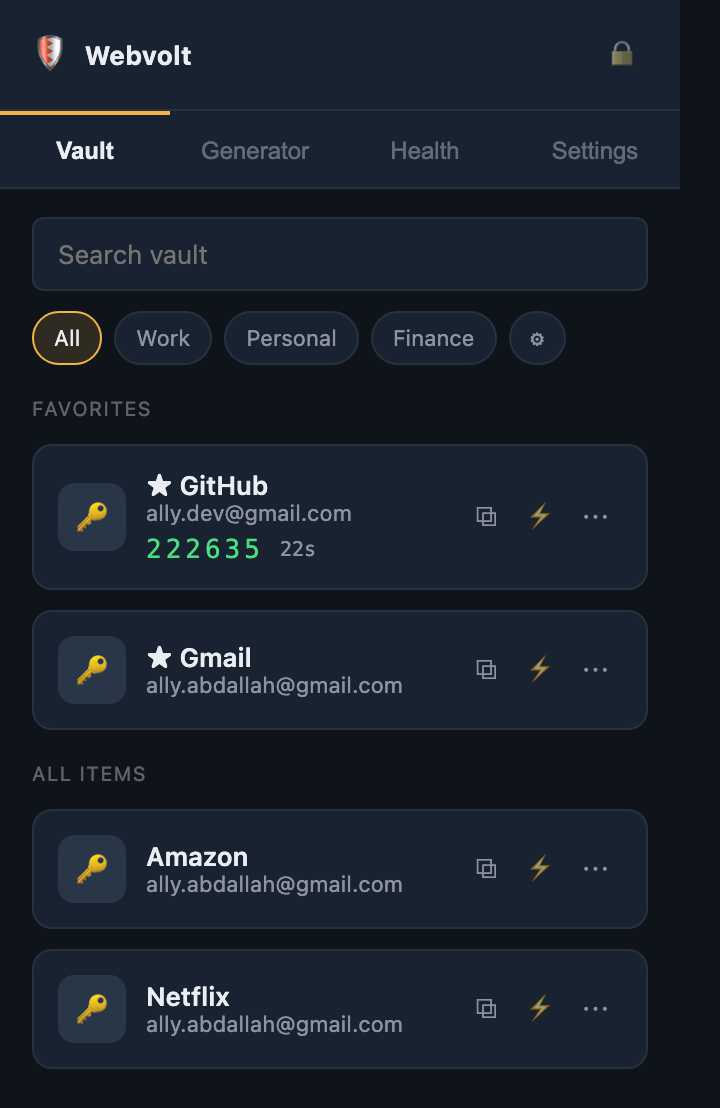
- Search: type in the search box to filter by name or username instantly.
- Folders: tap a folder chip (for example Work, Personal) to show only that folder. Tap All to clear the filter.
- Manage folders: tap the ⚙ chip in the filter row to rename or delete folders. Deleting a folder keeps its items — they simply move to "no folder".
- Favourites: open an item's ⋯ menu and choose Favorite to pin it to the top.
Autofill & saving logins
Filling a login
Open the site you want to sign in to, then open Webvolt and use a login item:
- ⚡ Fill this page — fills the username and password into the current tab.
- Launch & fill (in the ⋯ menu) — opens the item's website in a new tab and fills it once the page loads.
- ⧉ Copy — copies the password to the clipboard, which auto-clears after 30 seconds.
Saving a new login
When you sign in on a site whose login isn't stored yet, Webvolt shows a small "Save login?" banner. Click Save and it is captured into your vault (encrypted, like everything else). The banner only appears for logins that aren't already saved.
Password generator
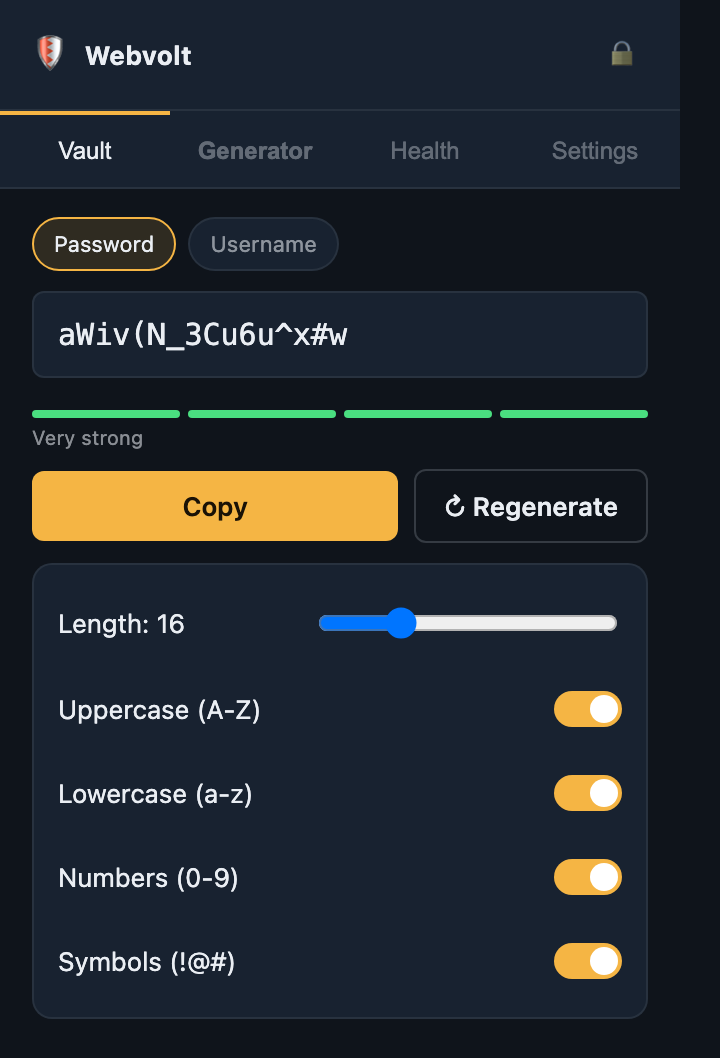
Open the Generator tab to create strong, random secrets.
- Switch between Password and Username.
- Adjust the length and toggle uppercase, lowercase, numbers and symbols.
- The strength meter grades the result; ↻ Regenerate makes a new one.
- Copy puts it on the clipboard (which auto-clears after 30 seconds).
Every value comes from the browser's cryptographically secure random source, and each enabled character type is guaranteed to appear at least once.
Two-factor (2FA) codes
Webvolt can generate time-based one-time passwords (TOTP), the six-digit codes many sites use for two-factor authentication.
- When a site shows you a 2FA setup screen, choose the "enter a setup key / can't scan" option to reveal the base32 secret.
- Edit the matching login in Webvolt and paste that secret into the 2FA secret field.
- Save. The login now shows a live six-digit code with a countdown; it refreshes automatically.
Tap the code to copy it. Codes are computed on your device using the standard TOTP algorithm.
Vault health
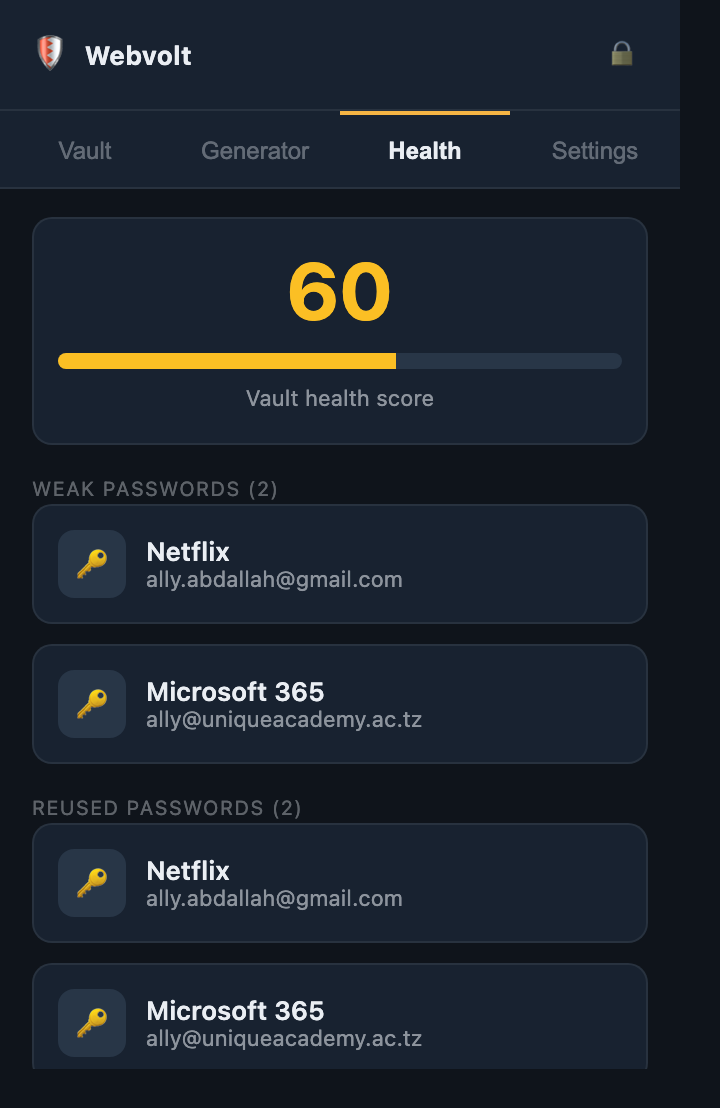
The Health tab checks your logins entirely on your device — nothing is sent anywhere — and gives you a health score out of 100.
- Weak passwords — logins whose passwords are short or low-complexity.
- Reused passwords — any password used on more than one login, the habit that turns a single breach into many.
Tap any flagged item to open it, then use the generator to replace the weak or reused password with a unique strong one.
Change master password
In Settings → Change master password, enter your current password and a new one. Webvolt re-derives your encryption key and re-encrypts the entire vault under it in one step, then rotates your authentication. Nothing is ever left protected by the old key.
Backup & restore
Under Settings → Backup:
- Export vault saves a copy of your vault as a JSON file.
- Import vault from file loads a previously exported file back in.
Settings summary
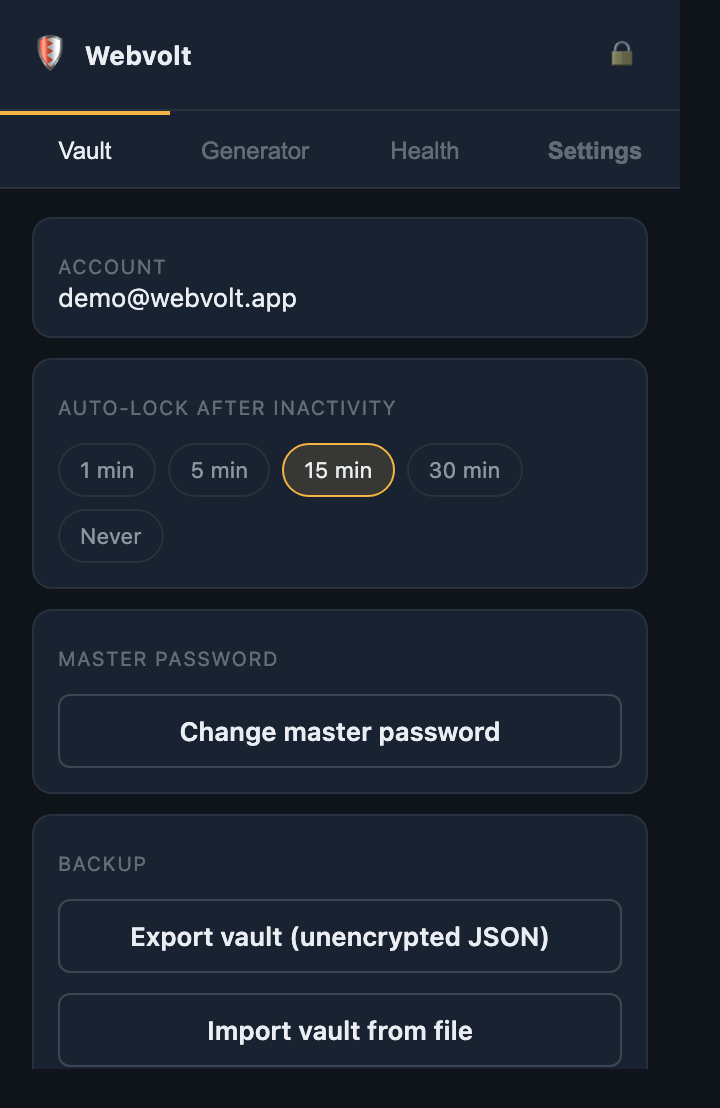
| Setting | What it does |
|---|---|
| Account | Shows the email your vault is registered to. |
| Auto-lock | How long of inactivity before the vault locks itself: 1, 5, 15, 30 minutes, or never. |
| Change master password | Rotate your master password and re-encrypt the vault. |
| Export / Import | Back up the vault to a file, or restore from one. |
| Sign out | End the session and clear all data on this device. |
How the security works
You don't need to understand this to use Webvolt, but here is what happens under the hood.
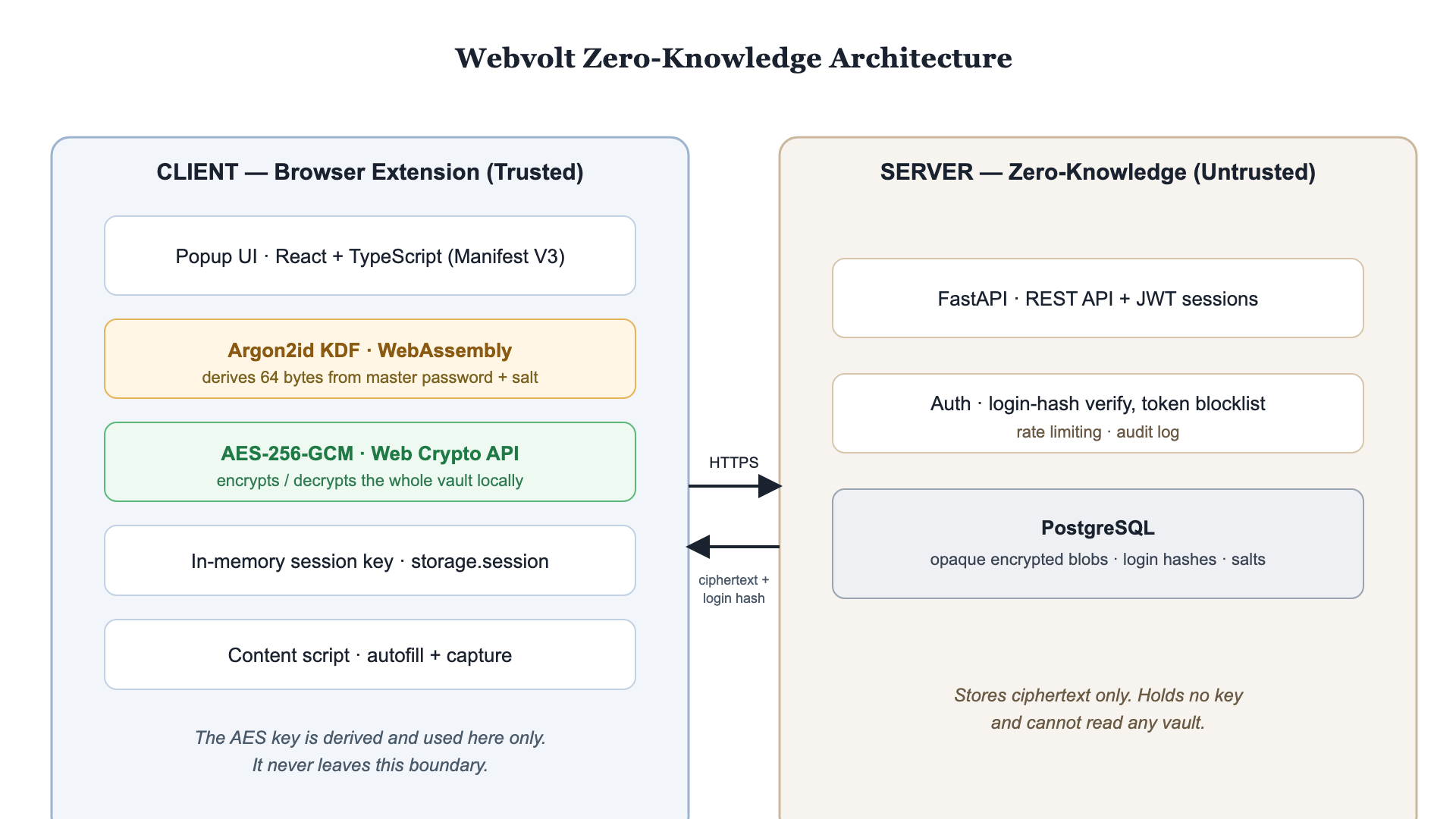
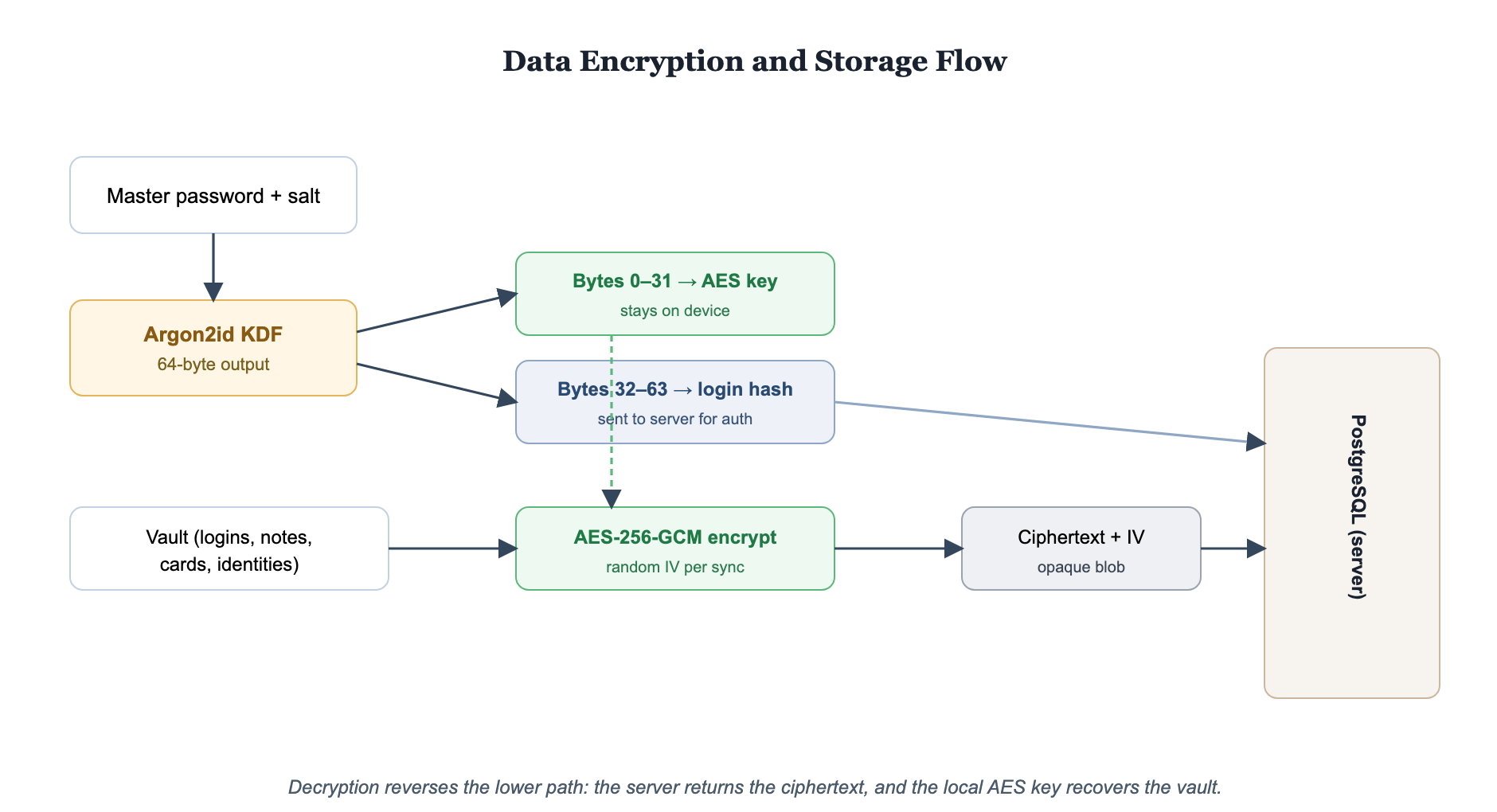
- Your master password and a per-account salt go through Argon2id, a deliberately slow, memory-hard function, producing 64 bytes.
- Those bytes are split: the first half becomes your AES-256 encryption key (which never leaves your device); the second half becomes a login hash used only to prove who you are to the server.
- Your whole vault is encrypted with AES-256-GCM before it is synced. The server only ever receives and stores that opaque encrypted blob.
- Because the encryption key is never sent anywhere, the server cannot read your vault — even if it is completely breached, an attacker gets only unreadable ciphertext.
The encryption key is held in memory only and wiped when you lock or close the browser. Autofill verifies the page's address before filling, and the backend authenticates you without ever holding anything that could decrypt your data.
Troubleshooting
The popup can't reach the server / login fails
Make sure the backend is running (docker compose up in backend) and that CORS_ORIGINS in backend/.env contains your extension's ID as chrome-extension://<id>. Restart the backend after changing it.
"Manifest file is missing or unreadable" when loading
You selected the wrong folder. Load extension/dist, not extension. Run npm run build first if dist doesn't exist.
Autofill says the page doesn't match
This is the phishing defence working. Check that the login's Website field matches the site you're on (for example github.com). Update the field if it's blank or wrong.
Site icons don't appear
Icons come from the browser's own cache via the login's Website field. If it's empty, Webvolt shows a 🔑 placeholder instead. Add the website to get the icon.
I forgot my master password
It cannot be recovered — that's the point of zero-knowledge. If you have an exported backup you can read your data from that file; otherwise the vault cannot be decrypted.
Nothing happens after I close and reopen the browser
That's expected: the vault locks on browser close. Open the popup and enter your master password to unlock.